> Complete documentation index: [llms.txt](/llms.txt). Markdown versions of all pages are available by appending `.md` to page URLs.
# Updating Binho Mission Control Software
> Update Mission Control 2 automatically through the built-in updater, or manually by installing a newer release.
:::caution
**Mission Control 2: legacy, for the Binho Nova.** For the Binho Supernova, the Binho Pulsar and the Binho Atira, use [Mission Control 3](/software/legacy/mission-control-2/).
:::
Keep Mission Control 2 up to date to get the latest features, optimizations and security fixes:
## **Auto-Update**
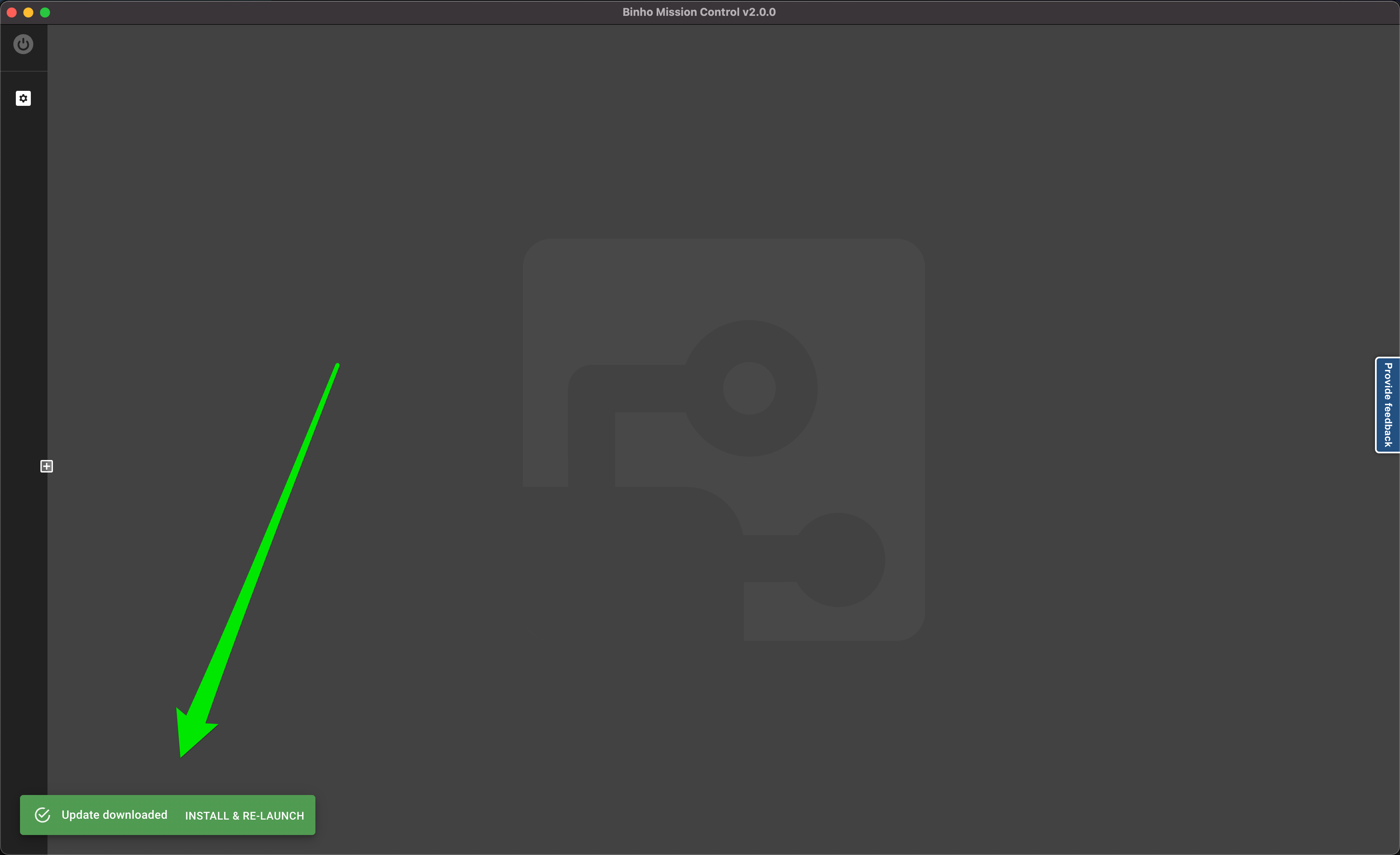
1. **Automatic Detection**: When a new version of the Binho Mission Control software is available, the app's built-in auto-updater shows a notification.
2. **Installation**: Once notified, choose to update immediately. The software handles the download and installation.
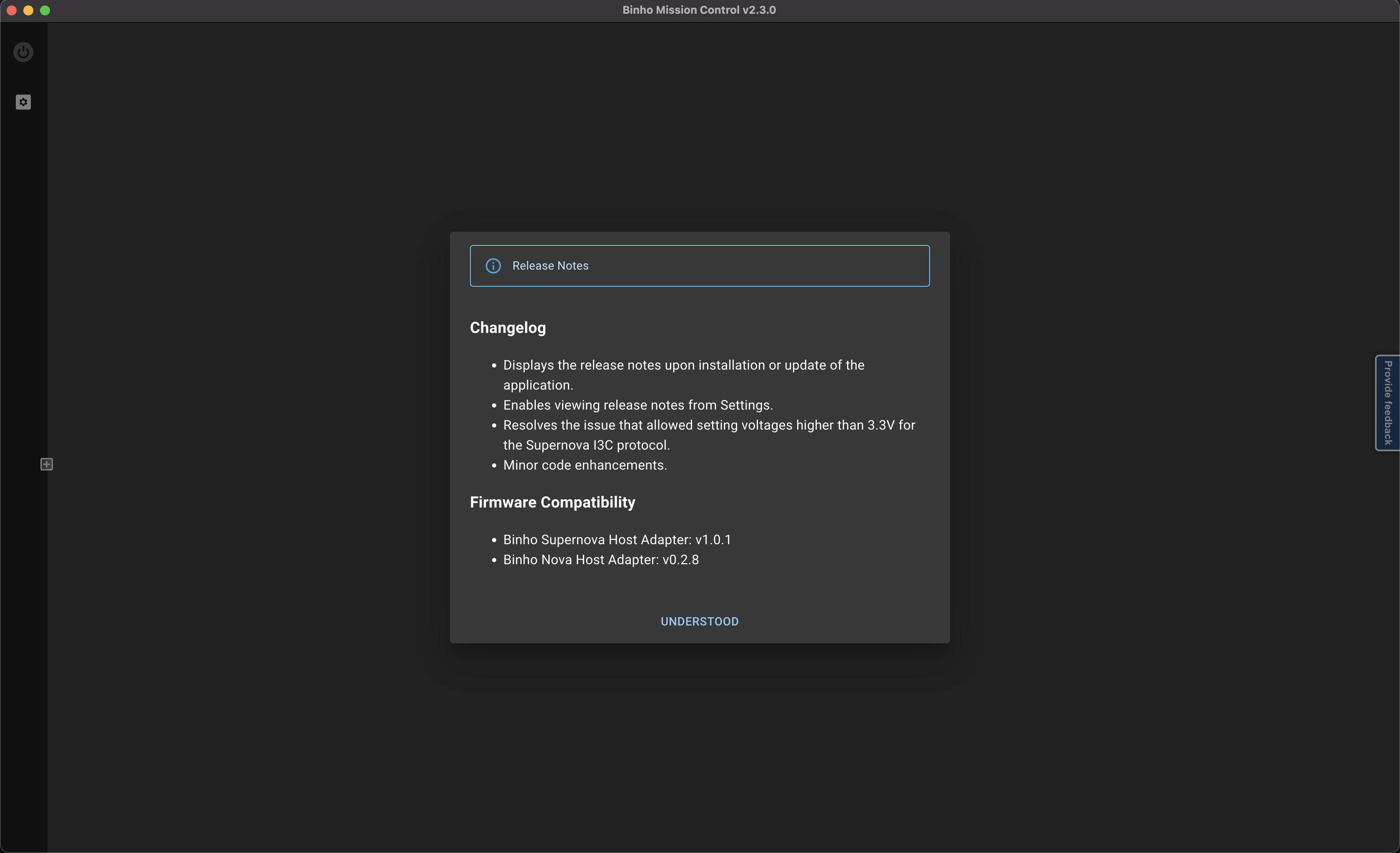
3. **Relaunch & Review Release Notes**: After the update is complete and the app is relaunched, the release notes for the new version will be displayed. This summarizes the improvements and changes.
## **Manual Update**
To install a specific version, follow these steps:
1. **Visit the Releases Page**: Head over to the Binho Mission Control releases page on GitHub: [Binho Releases](https://github.com/binhollc/MissionControl2-releases/releases).
2. **Choose the Version**: Browse through the available versions and select the one needed.
3. **Download & Install**: Click on the desired version to download the installation file. Once downloaded, follow the on-screen instructions to install.
## **Accessing Release Notes Later**
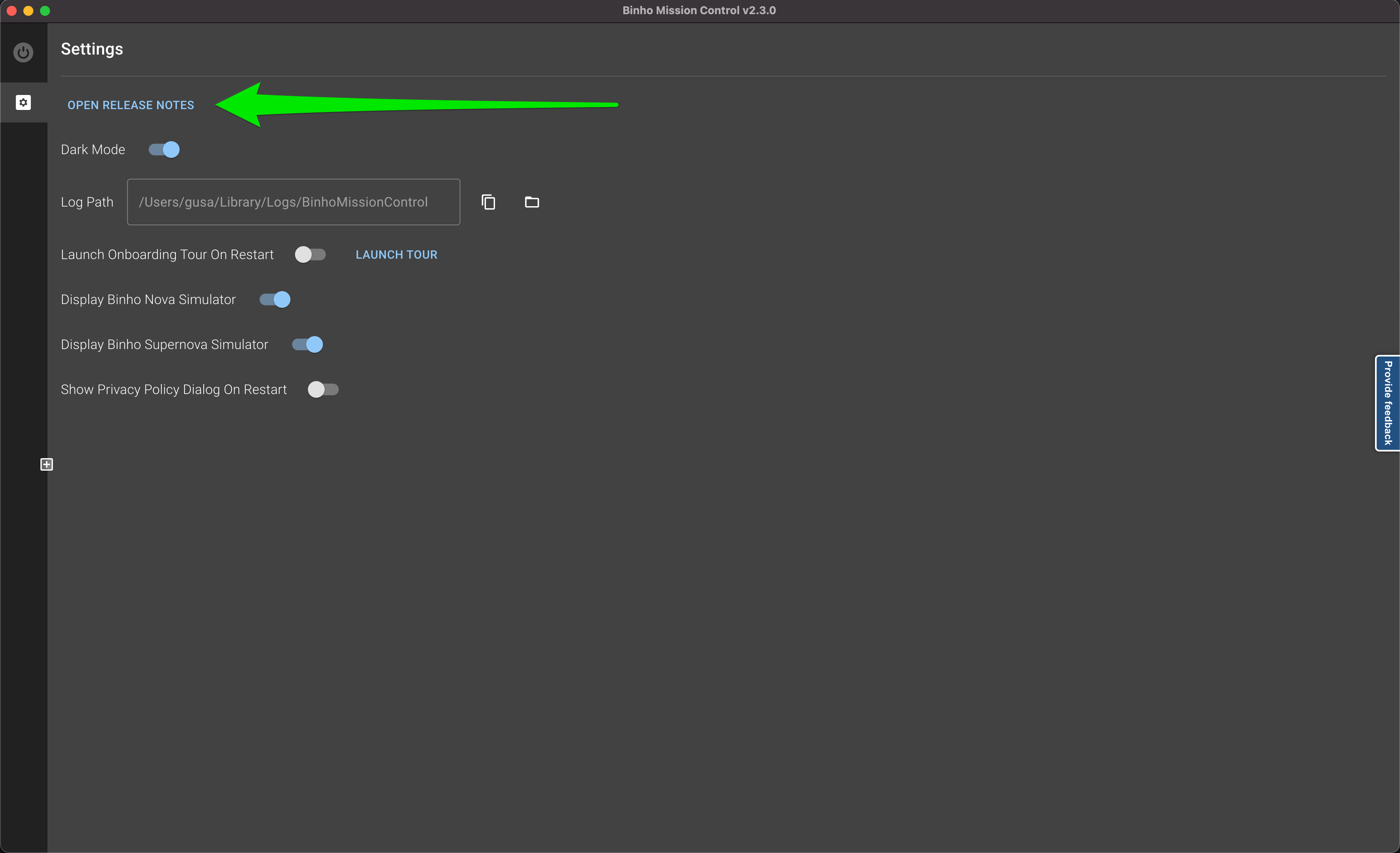
The release notes are available at any time in the app under the Settings menu.