

GPIO
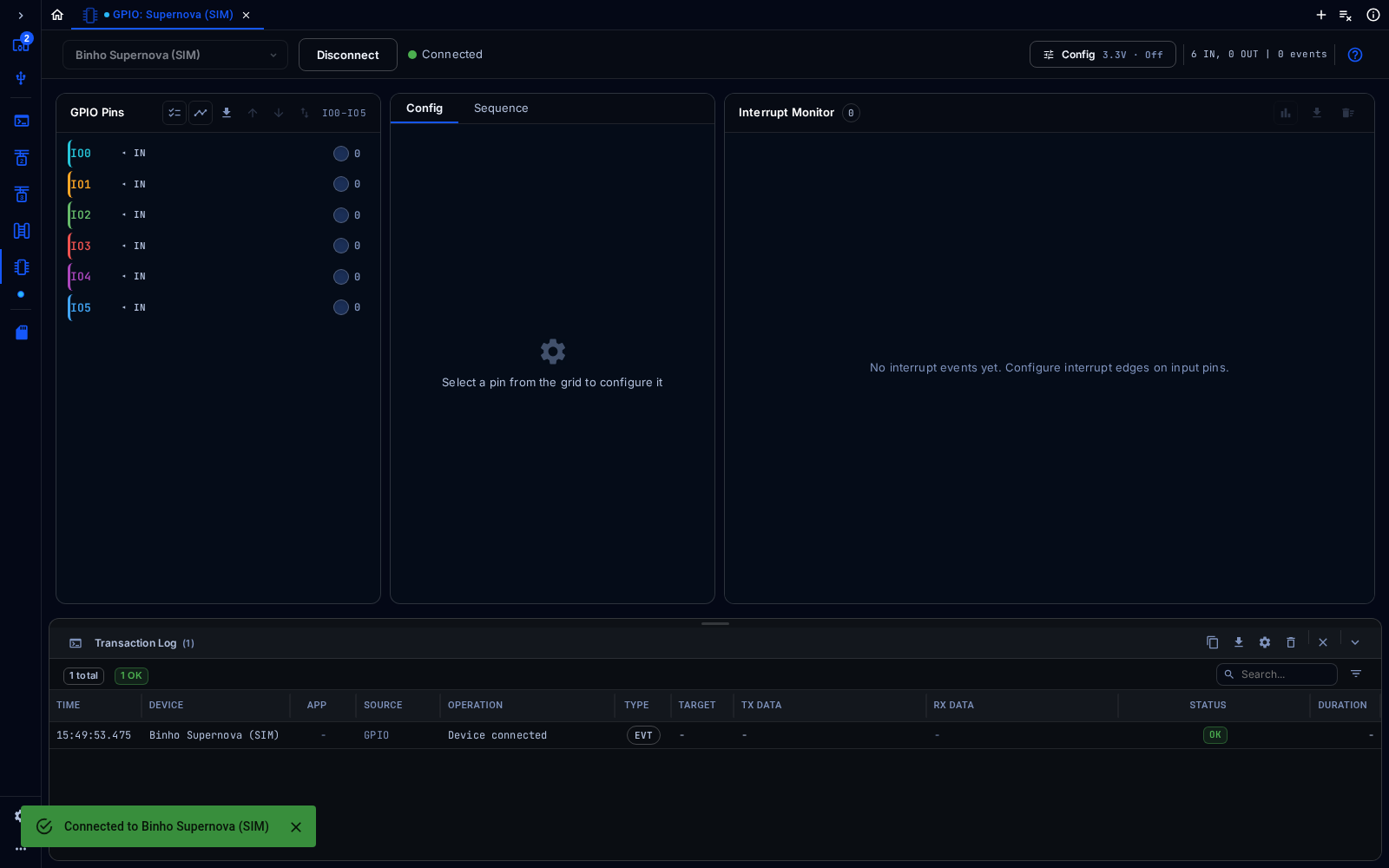
GPIO tool showing the six pins of a simulated Supernova
The GPIO tool configures the adapter’s general-purpose pins and shows their state.
Connect
Section titled “Connect”Choose the adapter from the device selector at the top left, then click Connect. In the web app, click Pair Device first to give the browser access to a real adapter, or pick a simulated device such as Binho Supernova (SIM) to try the tool without hardware. Config at the top right opens the settings for the bus.
Every tool shows the Transaction Log at the bottom: each command sent to the adapter, its data, its result and how long it took. It can be searched, filtered, copied and exported.
Configure
Section titled “Configure”In Config, set the pin voltage and how often the pin states are polled.
The pin grid lists every pin with its direction (IN or OUT) and its current level. Select a pin to configure it in the Config tab: a label, the direction (input or output), an interrupt edge (rising, falling or both), and Watch, which flags when the pin goes high, goes low or changes. Click Apply Configuration. The Sequence tab builds sequences of pin changes.
The Interrupt Monitor lists interrupt events from input pins as they happen.